Connect Jira
Monitor Jira with the JQL you already write.
- You need
- API token (Cloud) or personal access token (Data Center) id.atlassian.com › Security › API tokens id.atlassian.com
- The form asks
-
- Jira site
- Connector name
- API token
- You can watch
-
- Issues
- Status changes
- Comments
- SLAs
- Sprint scope
- Access
- JQL searches only
On this page
- Jira Cloud or Data Center: what you need
- Create a Jira API token (Jira Cloud)
- Create a personal access token (Jira Data Center)
- Connect Jira in CoIsland
- Choose what to watch: the five Jira monitor kinds
- Permissions the Jira account needs
- What a Jira monitor’s watch file looks like
- Troubleshooting Jira connector errors
- Common questions
To connect Jira to CoIsland you need your site’s address and a token: an API token plus your email on Jira Cloud, a personal access token on Jira Data Center. CoIsland calls your site’s REST API straight from your Mac, with no CoIsland server or account in between, and keeps the token in your login Keychain. This page covers both tokens, the connector form, the five Jira monitor kinds with JQL you can paste, and the errors you may meet.
Jira Cloud or Data Center: what you need
- Jira Cloud: your site, such as
https://your-team.atlassian.net, the email of your Atlassian account, and an API token. CoIsland signs in with basic authentication, email and token. - Jira Data Center: your server’s address with its context path, if any, such as
https://jira.example.com/jira, and a personal access token from your Jira profile. No email: CoIsland sends the token asAuthorization: Bearer.
The email tells the two apart: with one, the connector signs in as Jira Cloud; without one, as Data Center. A site ending in .atlassian.net or .jira.com must have an email, and Test connector checks what the site says it is.
Create a Jira API token (Jira Cloud)
- Sign in at id.atlassian.com › Security › API tokens.
- Select Create API token, not Create API token with scopes.
- Name it after what it is for, such as
CoIsland. - Pick an expiry date, from 1 to 365 days away.
- Select Create, then copy the token.
Why no scopes: Atlassian’s scoped tokens are called through api.atlassian.com/ex/jira/{cloudId}, while CoIsland calls your site’s own address, so it needs a token without scopes. Since December 15, 2024, Atlassian gives new API tokens a one-year expiry by default, and a token lasts at most a year. When yours expires, checks fail with the token message listed in Troubleshooting.
Create a personal access token (Jira Data Center)
Personal access tokens exist in Jira Software and Jira Core 8.14 and later, and in Jira Service Management 4.15 and later.
- In Jira, select your avatar at the top right, then Profile.
- Select Personal access tokens in the left-hand menu, then Create token.
- Give it a name, such as
CoIsland. - Optionally, set it to expire after a number of days.
- Select Create and copy the token: Jira does not show it again once you select Close.
The token carries your own permission level. Jira marks it Expires soon five days before it expires, and an expired token cannot be reactivated. Your administrator can cap a token’s lifetime, 365 days by default.
Connect Jira in CoIsland
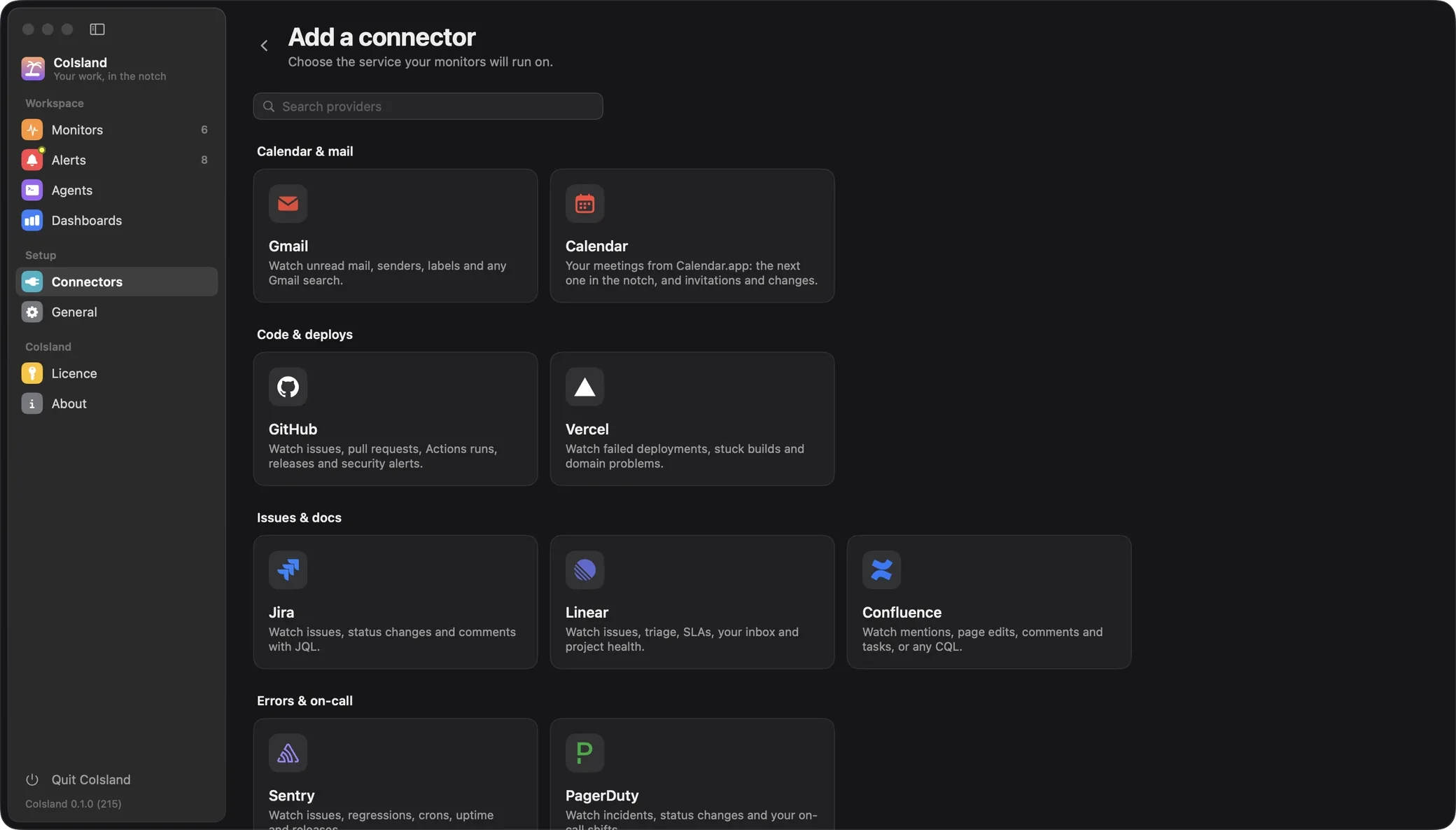
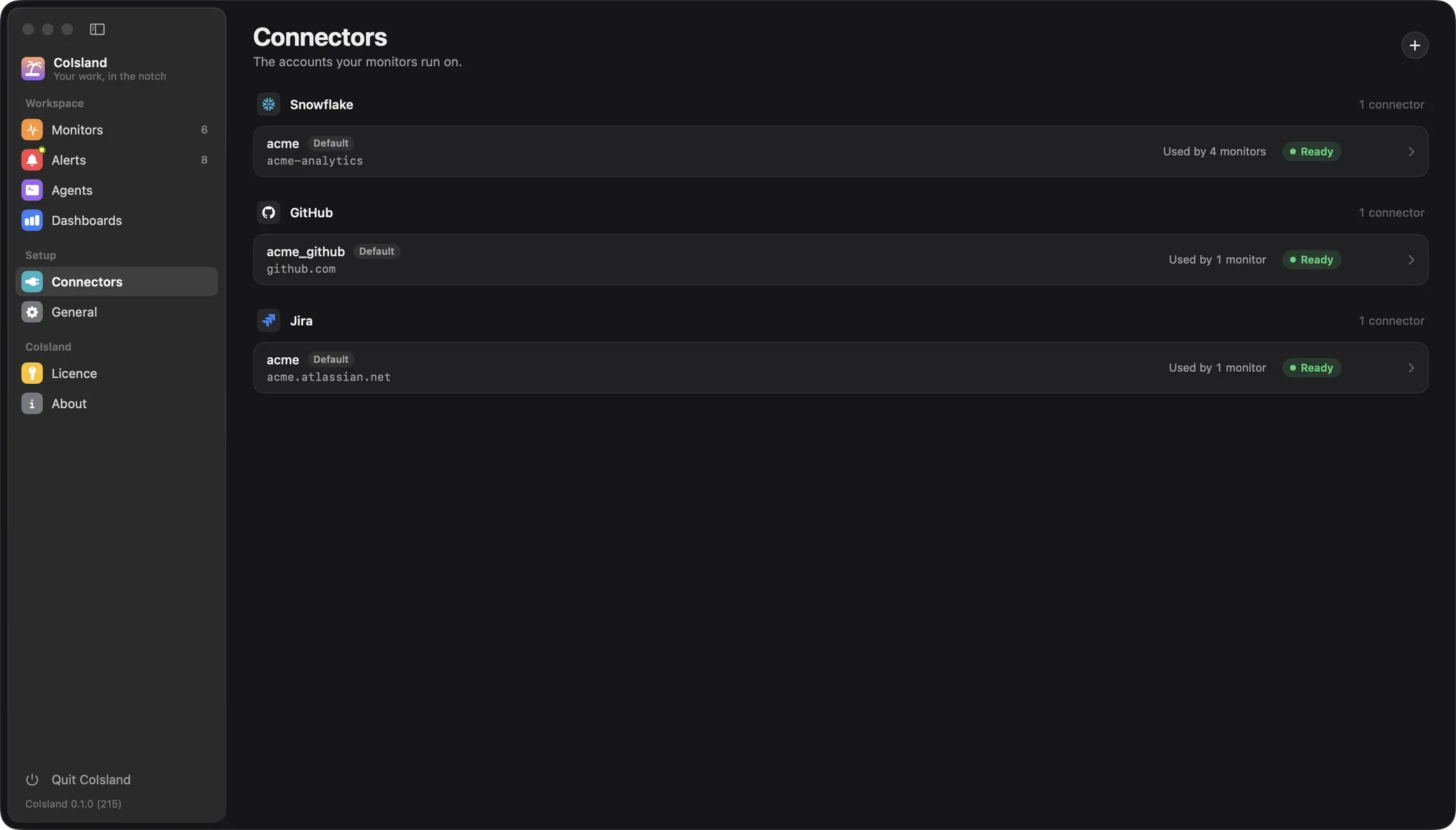
Open Settings › Connectors, click + at the top right (or Add Connector when you have none yet), and choose Jira.

The form has two groups, Site and Access:
| Field | What to enter |
|---|---|
| Jira site | The address you open Jira at, with https://: the token is never sent unencrypted. On Cloud a pasted board link works; on Data Center, keep the context path. |
| Connector name | What monitors call it, filled in from the site until you type your own: your-team for your-team.atlassian.net. Letters, digits, _ and -. |
| Jira Cloud only: the Atlassian account the token belongs to. | |
| API token | The token you created, either kind. |
Then click Test connector, which saves nothing. It asks the site’s /rest/api/2/serverInfo without the token, to learn whether it is Cloud or Data Center, then calls /rest/api/2/myself with it. A success reads Connected, with your name, your email or user name, the edition and the host.
Click Add Connector. The site, the deployment and the email go to ~/Library/Application Support/CoIsland/connectors.json, the token to your login Keychain. The first Jira connector becomes the default, which monitors use unless they name another. Add one connector per site if you have several.

Choose what to watch: the five Jira monitor kinds
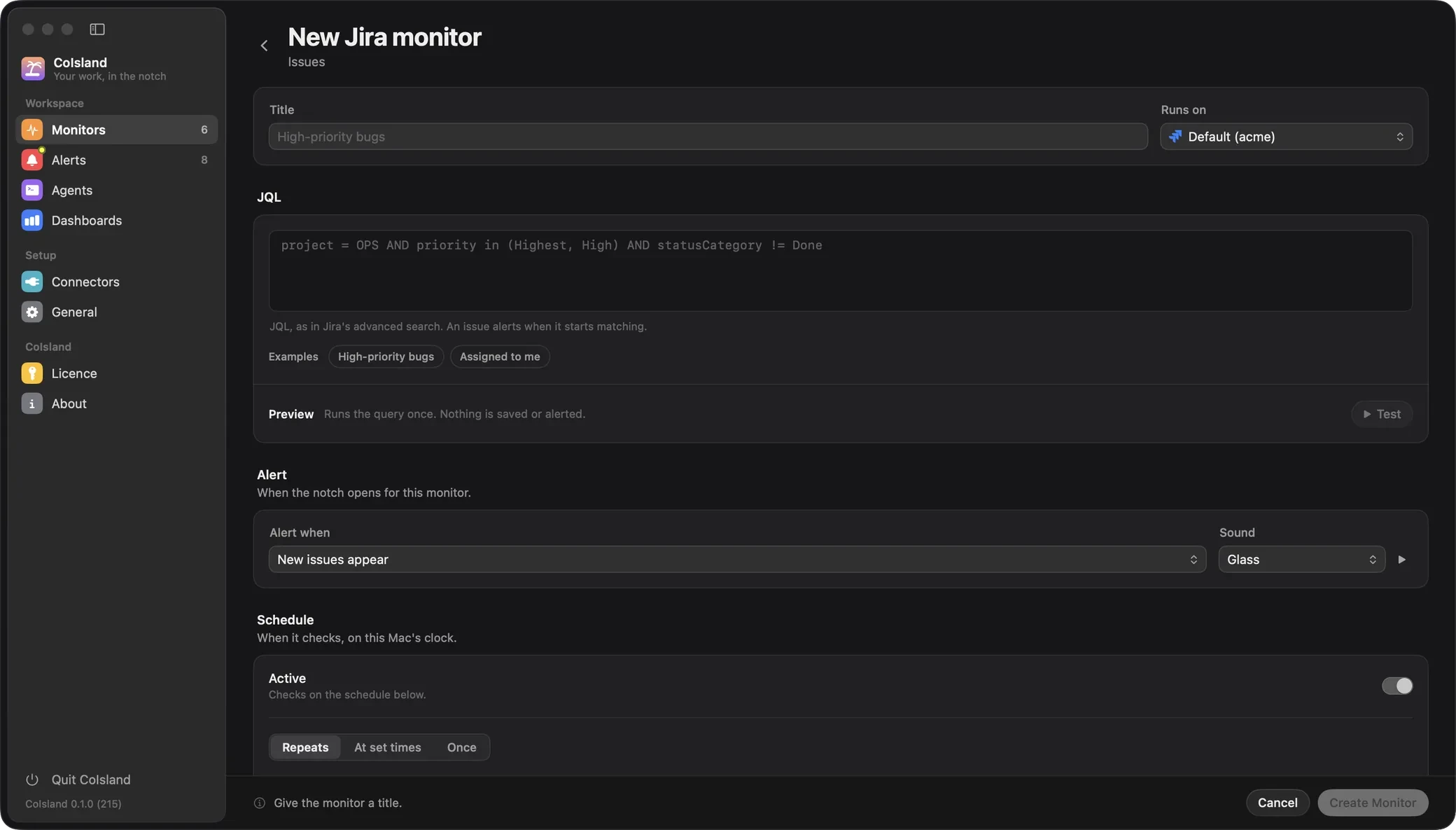
Open Monitors, add a monitor and choose Jira. Every kind takes one JQL query and alerts on what enters it, with Runs on (the connector), Alert when (new items appear, or a count crosses a threshold), Check every (15 minutes by default, from 30 seconds to 30 days) and Sound. A new-items monitor’s first check records what already matches and raises nothing; a count monitor already past its threshold alerts on its first check.
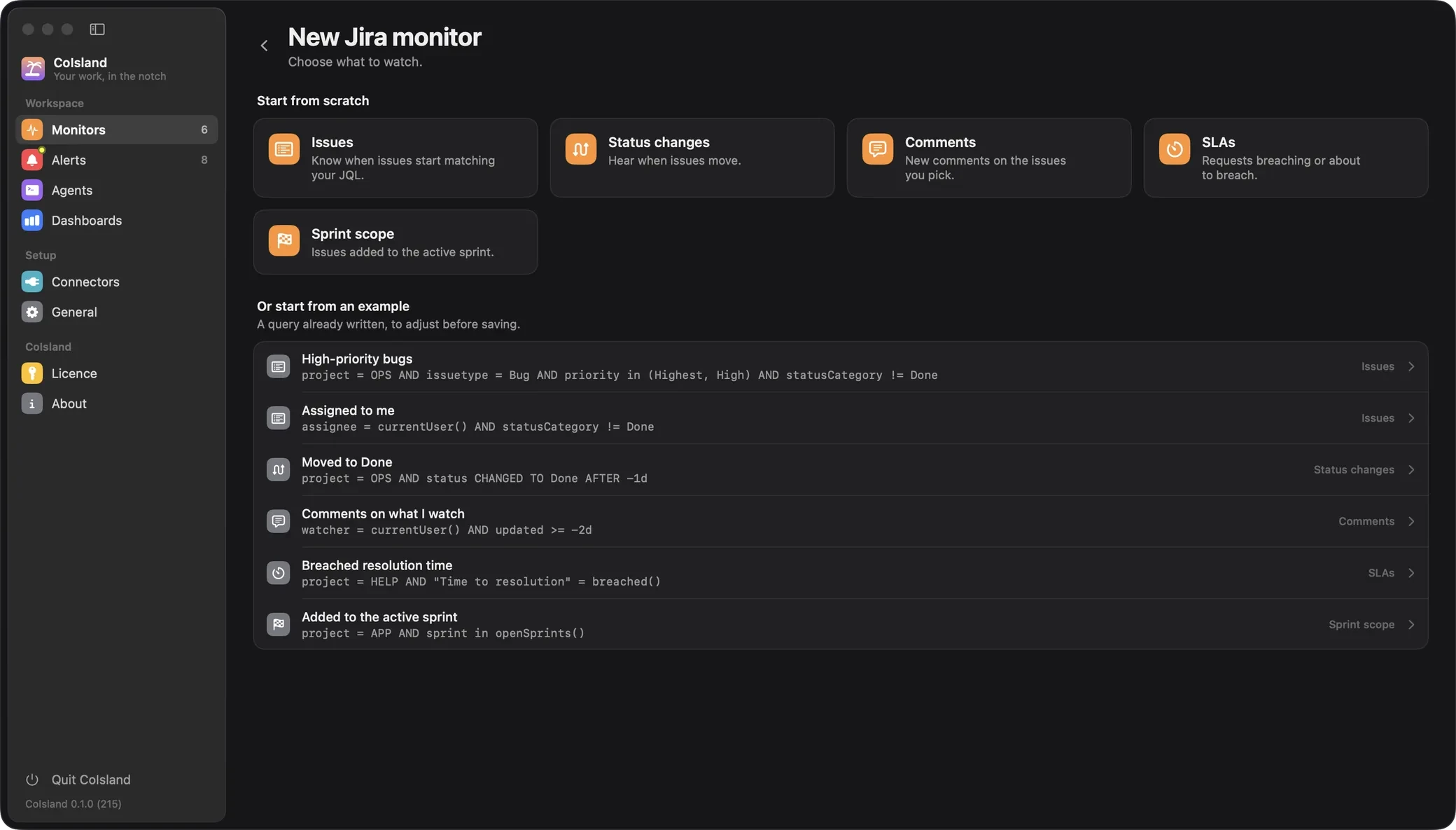
Issues
An issue alerts when it starts matching. It is tracked by its ID, so a move to another project does not make it new.
project = OPS AND issuetype = Bug
  AND priority in (Highest, High)
  AND statusCategory != Done
Status changes
An issue alerts each time it is in a status it was not in at the last check, with the status it came from. A change dated more than an hour before the previous check does not alert: the issue came back into your JQL, it did not move. Keep the window longer than the check interval.
project = OPS
  AND status CHANGED TO Done AFTER "-1d"
Comments
Each new comment on the issues your JQL picks alerts, with its author and text. Jira Cloud’s search sends each issue’s 20 newest comments, so when more than 20 arrive on one issue between two checks, only the newest 20 alert.
watcher = currentUser()
  AND updated >= "-2d"
SLAs (Jira Service Management)
A request alerts when it starts matching. Use Jira Service Management’s SLA functions, with the SLA’s name as your service project shows it: breached() for a goal already missed, remaining() for one about to be.
project = HELP
  AND "Time to resolution" = breached()
remaining() also returns requests already breached, so exclude them, as Atlassian suggests:
project = HELP
  AND "Time to resolution" < remaining("30m")
  AND "Time to resolution" != breached()
Sprint scope (Jira Software)
An issue alerts when it joins a sprint that was started and not yet completed, with the sprint’s name. It needs Jira Software’s Sprint field.
project = APP
  AND sprint in openSprints()
Click Test to run the JQL once: nothing is saved or alerted. A check reads up to 1,000 issues (10,000 for Issues, SLAs and Sprint scope on Data Center); when more match, nothing is compared and the monitor asks you to narrow the query.

When a monitor fires, the island opens for a few seconds with its sound. The alert shows each issue with its key, summary, status and assignee, and you can hand it to an agent.
Permissions the Jira account needs
- Browse projects on every project your JQL searches. Jira returns only the issues the account can see, so a missing permission shows as fewer issues, not an error.
- Agent access to the service project for SLA monitors: Atlassian notes that only Jira Service Management agents can view SLA metrics.
- Jira Software on the site for sprint monitors.
Both tokens act as your account, with all its permissions: neither is read-only by itself. CoIsland only reads with yours: it searches and looks up issues, and its one POST asks Jira’s JQL parser to check a query. To limit what the connector sees, use an account that can browse only the projects you want watched.
What a Jira monitor’s watch file looks like
Every monitor is a .sql file in ~/.coisland/watches, Jira ones included. The -- kind: line names the Jira kind, and the body is the JQL, sent to Jira as written; the header never is. A file with no kind is Snowflake SQL. Saved with the acme connector picked under Runs on and a request line set under Advanced, the SLA example above becomes this file:
-- name: Breached resolution time
-- kind: jira.sla
-- connector: acme
-- every: 15m
-- alert: new-rows
-- title: {KEY} {SUMMARY}
-- sound: Glass

project = HELP
  AND "Time to resolution" = breached()
The kinds are jira.issues, jira.status, jira.comments, jira.sla and jira.sprint. Without a connector line, the monitor runs on the default Jira connector. title sets how an issue reads in the island, with columns such as {KEY}, {SUMMARY}, {STATUS} and {ASSIGNEE}. Changing the JQL, the kind or the connector starts a new baseline. Watch files lists every header key.
Troubleshooting Jira connector errors
CoIsland shows these on the connector form, under Test, or on the monitor.
- The token was refused. Check it has not expired or been revoked. Jira answered 401, or answered as a signed-out user, which CoIsland refuses so a monitor never shrinks silently. On Cloud, check the email is the token’s owner. For a new token, add a new connector and pick it under Runs on.
- Not allowed. The token may lack a permission. Jira answered 403. Check the account’s project permissions.
- jira.example.com does not answer as a Jira site. The address answered with a page, nothing, or a redirect. CoIsland never follows redirects: enter the address Jira ends up at, with the context path on Data Center.
- This is a Jira Cloud site: enter the email of the Atlassian account the token belongs to. Fill in Email.
- This is a Data Center site: leave Email empty, it signs in with a personal access token. Clear Email.
- Jira refused the query: then Jira’s reason. Fix the JQL in Jira’s advanced search, then paste it back.
- Jira says: then a reason, as a warning. On Cloud, a misspelled field or project returns no issues instead of an error, so CoIsland asks Jira’s strict JQL parser whenever a search comes back empty.
- This site has no Sprint field: sprint monitors need Jira Software. Use another kind.
- The saved settings of acme are incomplete. Add it again. Its site, deployment or email in
connectors.jsonis missing, often after a hand edit. Add it under a new name (names are unique) and point its monitors at it. - No Jira connector is named acme. A monitor’s
-- connector:line names a connector that does not exist. - More than the 1000 rows fetched match, so nothing is compared. Narrow the query. Tighten the JQL, with a project or a date.
Common questions
How do I create a Jira API token for CoIsland?
At id.atlassian.com, open Security › API tokens, select Create API token, name it, pick an expiry of up to 365 days, and copy it into the connector form with your Atlassian email.
Should I use a Jira API token with scopes?
No. Atlassian’s scoped tokens are called through api.atlassian.com, and CoIsland calls your site’s own address. Use Create API token, without scopes.
Can I connect Jira Data Center with a personal access token?
Yes. Create it under your avatar › Profile › Personal access tokens, enter your server’s address with its context path, and leave Email empty.
Does CoIsland need Jira admin rights?
No. The account needs to browse the projects your JQL searches, plus agent access for SLA monitors.
Can CoIsland change my Jira issues?
No. It only reads. The token stays in your login Keychain and goes only to your Jira site, never to a CoIsland server.
How do I get Jira alerts on my Mac without email?
Connect Jira, then add a monitor: the island opens for a few seconds with a sound when it fires. The Jira notifications guide walks through it.
Next: Getting started for the rest of the app, or the Jira connector for everything it can watch.
Stuck? Open an issue on GitHub, or write to hello@coisland.app.