

Jira notifications arrive by your role on an issue, not by how much the issue matters. Trim them where Jira lets you, then add a JQL search that speaks up in an island on your Mac only when something new matches.
Why Jira notifications get ignored
Jira emails you about issues you watch, reported, are assigned or are mentioned on. With Watch your work items on, every issue you create or comment on joins that list. The bug that matters arrives beside a label change on a ticket you touched months ago, and you learn to skim them all.
The fix, in any tool: write what deserves an interruption as a query, and hear about it once, when something new matches. Jira Cloud’s menus now say “spaces” and “work items”; the steps quote them as shown.
Reduce Jira email notifications in your personal settings
Start here: it takes a minute and needs no admin. In Jira Cloud:
- Select Settings at the top right, then Personal Jira settings › Notification settings › Spaces and work items.
- Turn off Send me emails for work item activity, or clear the cases you do not need: watching, reporter, assignee, mentions, and changes you make yourself.
- Under Customize space notifications, set other choices for up to 50 spaces.
- Back under Personal Jira settings, open General settings and turn off Watch your work items, so a comment no longer makes you a watcher.
Jira Cloud already batches: a burst of changes on one issue arrives as one summary email, up to 10 minutes late, while mentions, alerts, SLA notifications and newly assigned work come at once.
Where it stops: these settings filter by your role, on top of the notification scheme your admin set. They cannot say “only Highest-priority bugs in OPS”.
On your phone, and on your Mac
The Jira Cloud apps for iOS and Android send push notifications for mentions, issues you watch, are assigned or reported, and new work: the same role-based choices, on another screen. On the Mac, Atlassian has ended support for its Jira Cloud for Mac app and points you to Jira in your browser.
Get a digest with a Jira filter subscription
A filter subscription emails the result of a saved JQL search on a schedule, on Jira Cloud and Data Center.
-
Write the search in advanced search and save it as a filter:
project = OPS AND issuetype = Bug AND priority in (Highest, High) AND statusCategory != Done -
Run the filter, select Details next to its name, and create a new subscription.
-
Choose the recipients (you, or a group you belong to) and a schedule. Advanced takes a cron expression, such as
0 0 9 ? * MON-FRIfor 9:00 every weekday.
Where it stops: each email carries the whole result, not what changed since the last one, and only its first 200 issues. It makes a good morning digest and a poor alarm.
Send a message with Jira automation
Jira automation (Atlassian’s docs now call a rule a flow) pairs a trigger with an action. Triggers include Work item transitioned, Work item commented, and Scheduled with a JQL query; actions include Send email, Send Slack message and Send Microsoft Teams message. On Jira Service Management, the SLA threshold breached trigger runs when an SLA has breached or is about to, at the time before or after the breach you choose.
Where it stops:
- By default, creating a rule takes admin rights on the space, or on Jira.
- Every run uses automation steps from a monthly allowance set by your plan; Jira Free has 150 for the whole site.
- The message lands in an inbox or a channel, next to everything else posted there.
A JQL alert in an island on your Mac with CoIsland
CoIsland is a Mac app that watches your work tools through connectors and turns what changed into alerts in the island. Its Jira connector only reads: it runs your JQL from your Mac against your site’s own API, with no CoIsland server or account, every 15 minutes by default and as often as every 30 seconds. A new Jira monitor offers five kinds, each a JQL search.

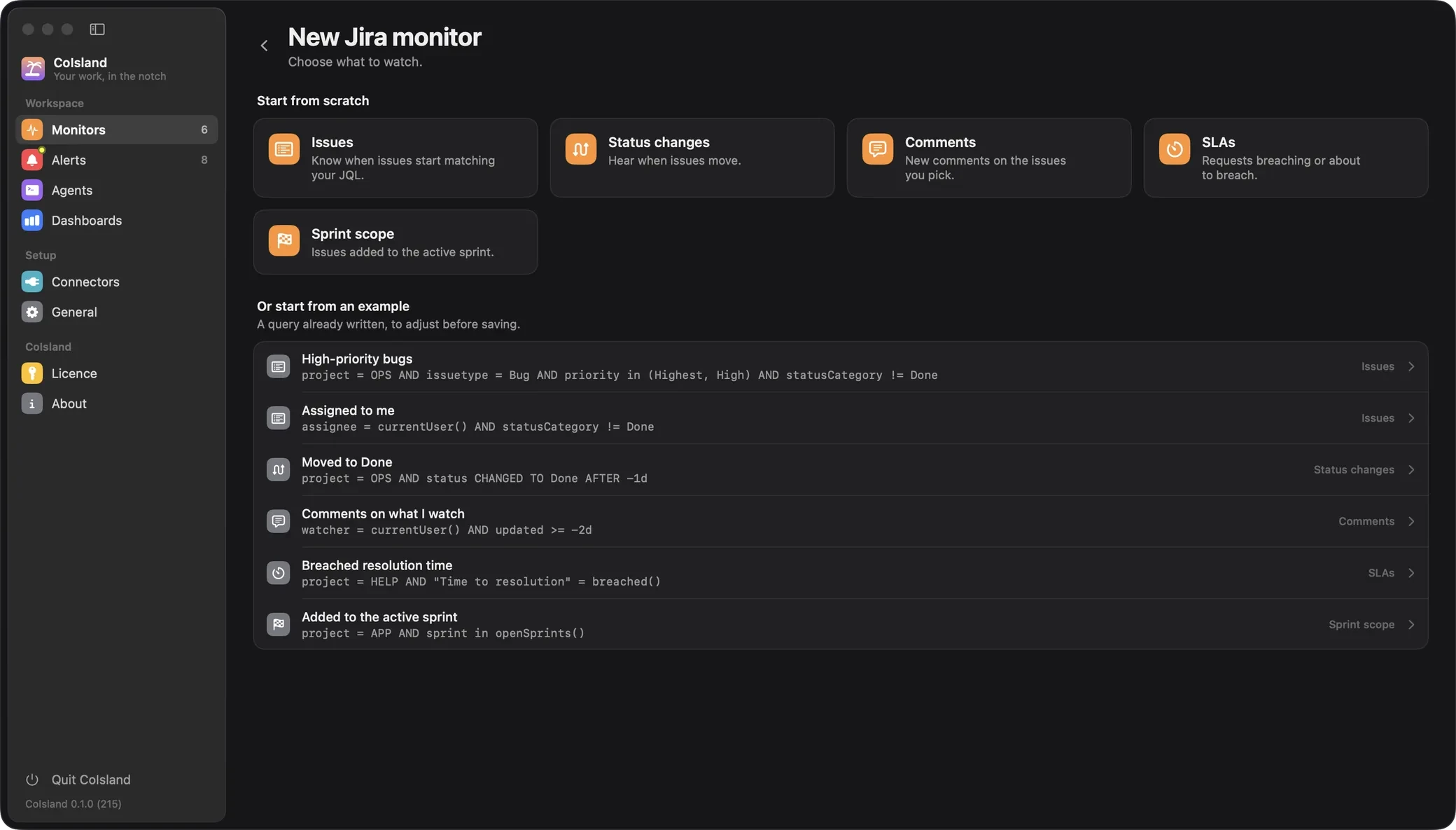
Issues: when an issue starts matching
project = OPS AND issuetype = Bug
AND priority in (Highest, High)
AND statusCategory != Done
Each issue alerts once, when it starts matching, and again only if it leaves and comes back.
Status changes: when an issue moves
project = OPS
AND priority in (Highest, High)
AND status CHANGED AFTER "-1d"
Each issue the JQL finds alerts every time it is in a status it was not in at the last check.
Comments: new comments on the issues you pick
watcher = currentUser()
AND updated >= "-2d"
Each new comment alerts; on Jira Cloud, a check reads each issue’s 20 newest comments.
SLAs: a Jira SLA breach notification before it happens
project = HELP
AND "Time to resolution" = running()
AND "Time to resolution" < remaining("30m")
AND "Time to resolution" != breached()
Each request alerts once, as it enters its last 30 minutes; "Time to resolution" = breached() alerts at the breach itself. Check every 5 minutes so the warning comes in time.
Sprint scope: issues added to the active sprint
An issue alerts when it joins an open sprint; this kind needs Jira Software. Here is the whole monitor as CoIsland saves it, a small text file in ~/.coisland/watches that you can also write by hand or keep in git:
-- name: Added to the sprint
-- kind: jira.sprint
-- connector: acme
-- every: 5m
-- alert: new-rows
-- sound: Glass

project = APP AND sprint in openSprints()
Any kind can instead alert when a count crosses a threshold, such as count > 5: once when it becomes true, even at the first check, and again only after it clears. With new issues, the first check records what already matches and stays silent.
Set up a Jira monitor, step by step
- Create a token. On Jira Cloud, at id.atlassian.com › Security › API tokens, choose Create API token, the one without scopes: a scoped token works only through api.atlassian.com, and CoIsland calls your site’s own address. On Data Center, open your avatar › Profile › Personal access tokens.
- Add the connector. In Settings › Connectors, choose Jira and enter the site (
https://your-team.atlassian.net, or your Data Center address with its path), a connector name, your email on Cloud only, and the token. Test connector checks the site and the token, which goes to the macOS Keychain. - Create the monitor. In Settings › Monitors, add a monitor, choose Jira, then a kind or an example. Write the JQL, select Test, set Alert when, Check every and Sound, then Create Monitor.

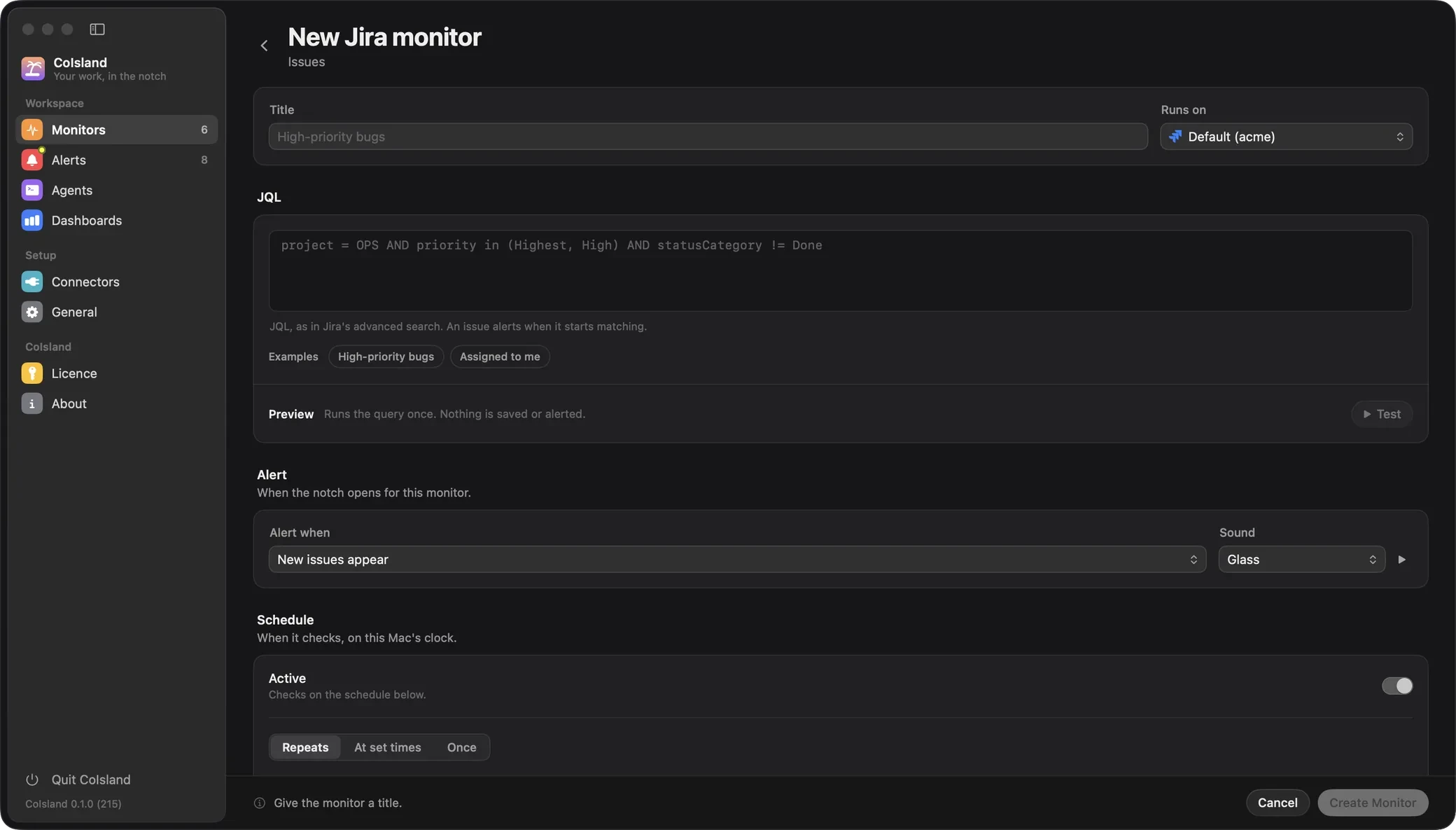
A monitor compares at most 1,000 issues on Jira Cloud; past that it asks you to narrow the JQL and alerts on nothing. Every connector field is in Connect Jira.
From the alert in the island to an agent
When an issue starts matching, the island opens for a few seconds with the monitor’s sound. Its ring counts down to the next check and pulses amber while issues are new, with their number under it, such as +2. Hover it for a card listing each new issue by summary, key, status and reporter. Click the ring to open the newest alert; press and hold it to mark them seen. The home page shows these cards.
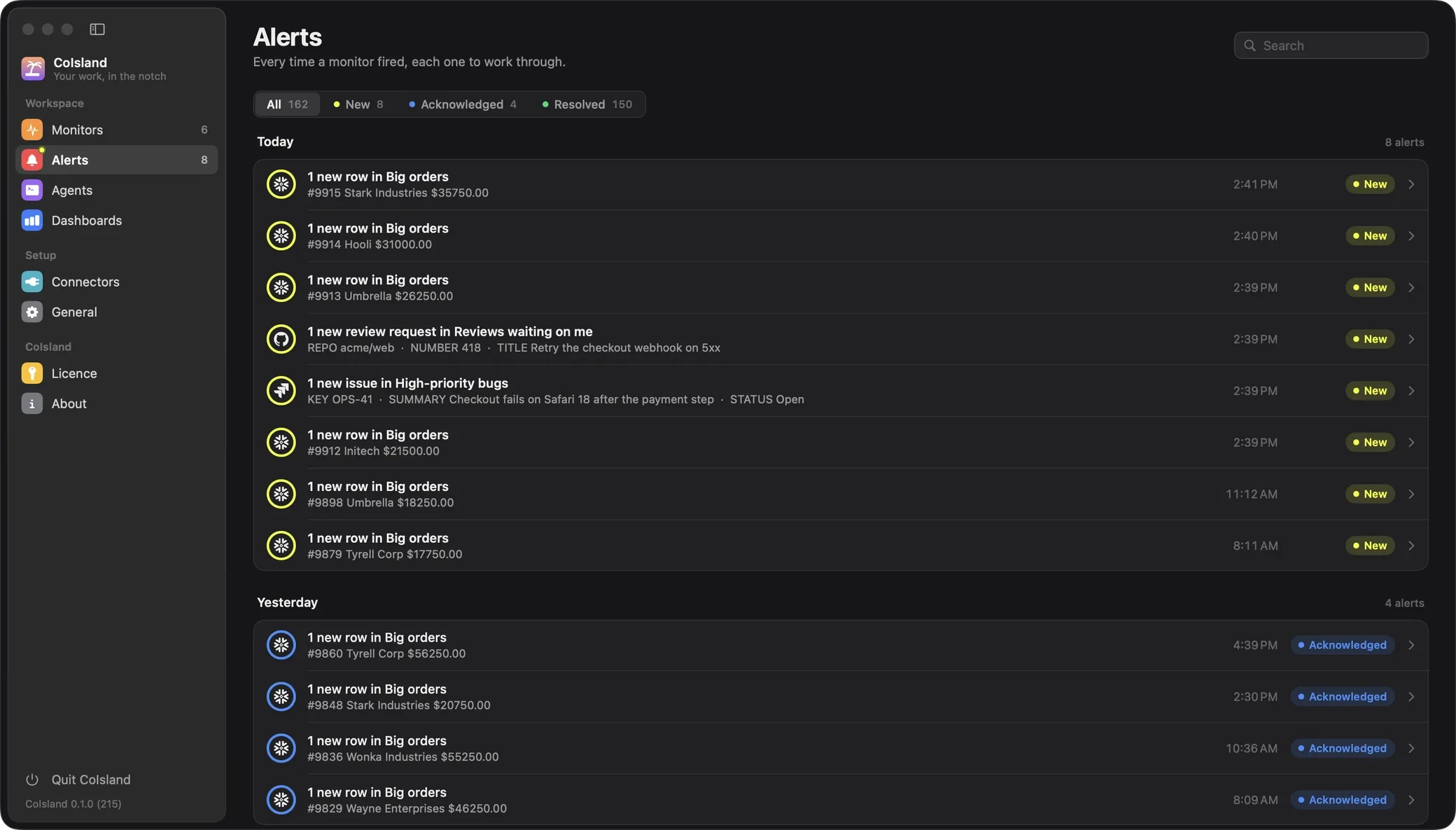
Every alert is also kept in Settings › Alerts, new, acknowledged or resolved, with notes in its activity log; the 500 newest stay. A Jira alert shows the issue as Jira renders it, with its description and newest comments. More on alerts.
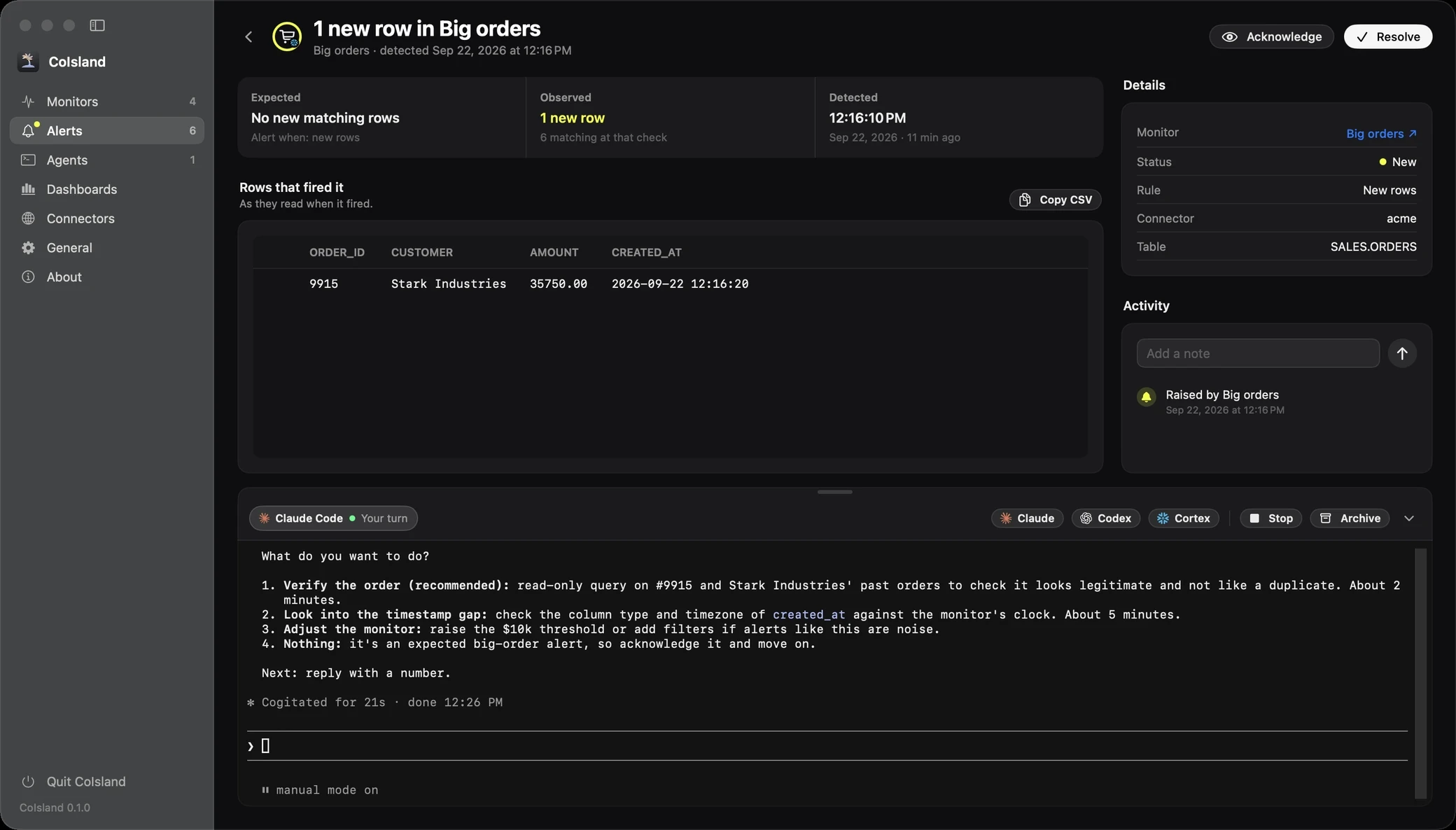
On the alert, or at the foot of the monitor’s card in the island, pick Claude Code, Codex or Cortex Code. The agent runs its own CLI in a terminal under the alert. Its first message is the whole alert: the monitor and its JQL, each issue with its description and comments, and the activity. It checks what it can, fixes what is safe, asks you before anything destructive, and leaves resolving the alert to you. Settings › Agents lists every session to resume, stop or archive. See agents and CoIsland for engineering.

Compare the ways to get Jira notifications
| Way | Filtered by | What reaches you | When |
|---|---|---|---|
| Personal settings | Your role on the issue | Email and in-app | As it happens; email batched up to 10 minutes |
| Mobile app | Your role on the issue | Push on your phone | As it happens |
| Filter subscription | Any JQL | The whole result, up to 200 issues | On a schedule |
| Jira automation (an admin sets it up) | Trigger, conditions, JQL | Email, Slack or Teams message | On an event or a schedule |
| CoIsland monitor | Any JQL, once per new match | Alert in the island, with a sound | Each check, 30 seconds to 30 days |
They combine well: mentions by email, a morning digest by subscription, and the searches that need you now in the island. More in the guides.