Connect GitHub
Monitor GitHub for what needs you, not everything that moves.
- You need
- Fine-grained token, read-only Settings › Developer settings › Personal access tokens
- The form asks
-
- Host
- Connector name
- Personal access token
- You can watch
-
- Issues and pull requests
- Review requests
- Failed workflow runs
- New releases
- Security alerts
- Access
- GET requests only, with a fine-grained read-only token
On this page
To connect GitHub to CoIsland, you create a read-only fine-grained personal access token, add it as a GitHub connector, then pick what to watch: issues and pull requests, review requests, failed workflow runs, new releases or security alerts. The same form works for github.com, GitHub Enterprise Server and GHE.com.
CoIsland calls GitHub’s REST API straight from your Mac: there is no CoIsland server and no CoIsland account. The token stays in your login Keychain, and every request the GitHub connector sends is a read.
Create a fine-grained token with read-only permissions
GitHub recommends fine-grained personal access tokens over classic ones: they can be limited to a few repositories and to read access. On GitHub:
- Click your profile picture, then Settings › Developer settings › Personal access tokens › Fine-grained tokens, and Generate new token.
- Token name: one you will recognize, such as
CoIsland. - Expiration: pick a date. An organization can cap how long its tokens live (366 days by default). CoIsland’s Test connector shows the expiry date GitHub reports.
- Resource owner: the user or organization that owns the repositories. A fine-grained token reaches one owner only, so two organizations take two tokens and two connectors.
- Repository access: Only select repositories, then the ones your monitors will name, or All repositories. Every token can already read public repositories, so watching the releases of a public project needs nothing more.
- Permissions: under Repository permissions, set the ones in the table below to Read-only. Leave the rest at No access.
- Generate token and copy it. It starts with
github_pat_.
Which permission each monitor kind needs
| Monitor kind | Permission, read-only | What CoIsland calls |
|---|---|---|
| Test connector | None | GET /user |
| Issues & pull requests | Issues, Pull requests | GET /search/issues, then the issue and its comments |
| Review requests | Issues, Pull requests | The same search, for pull requests |
| Failed workflow runs | Actions | Each repository’s actions/runs |
| New releases | Contents | Each repository’s releases |
| Security alerts | Dependabot alerts, Code scanning alerts, Secret scanning alerts | The dependabot, code-scanning and secret-scanning alert lists |
- GitHub adds Metadata (read-only) to the token by itself.
- The search needs no permission of its own, but it only finds what the token can read. When you open an item, CoIsland reads the issue again with its latest comments, which needs Issues.
- GitHub also checks your role: an
org:security monitor needs an organization owner or security manager, and secret scanning needs an administrator of the repository or organization.
GitHub can pre-fill the form from a link. This one names the token, sets 90 days and ticks every read-only permission above except secret scanning; add &secret_scanning_alerts=read to its address if you need it. You still pick the resource owner and the repositories.
When your organization must approve the token
When the resource owner is an organization, GitHub’s default policy asks an organization owner to approve each fine-grained token. Until then the token is pending and reads public resources only, so a private repository answers “Not found” in CoIsland. A token created by an organization owner is approved at once. Fine-grained tokens are authorized for SAML single sign-on when you create them.
Classic tokens work too
CoIsland also accepts a classic token (ghp_…); Test connector then lists its scopes. It needs the repo scope for private repositories, and security alerts ask for security_events. A classic token cannot be read-only, since repo grants write access to every repository you can reach, and it must be authorized for SAML single sign-on after you create it.
Connect GitHub in CoIsland
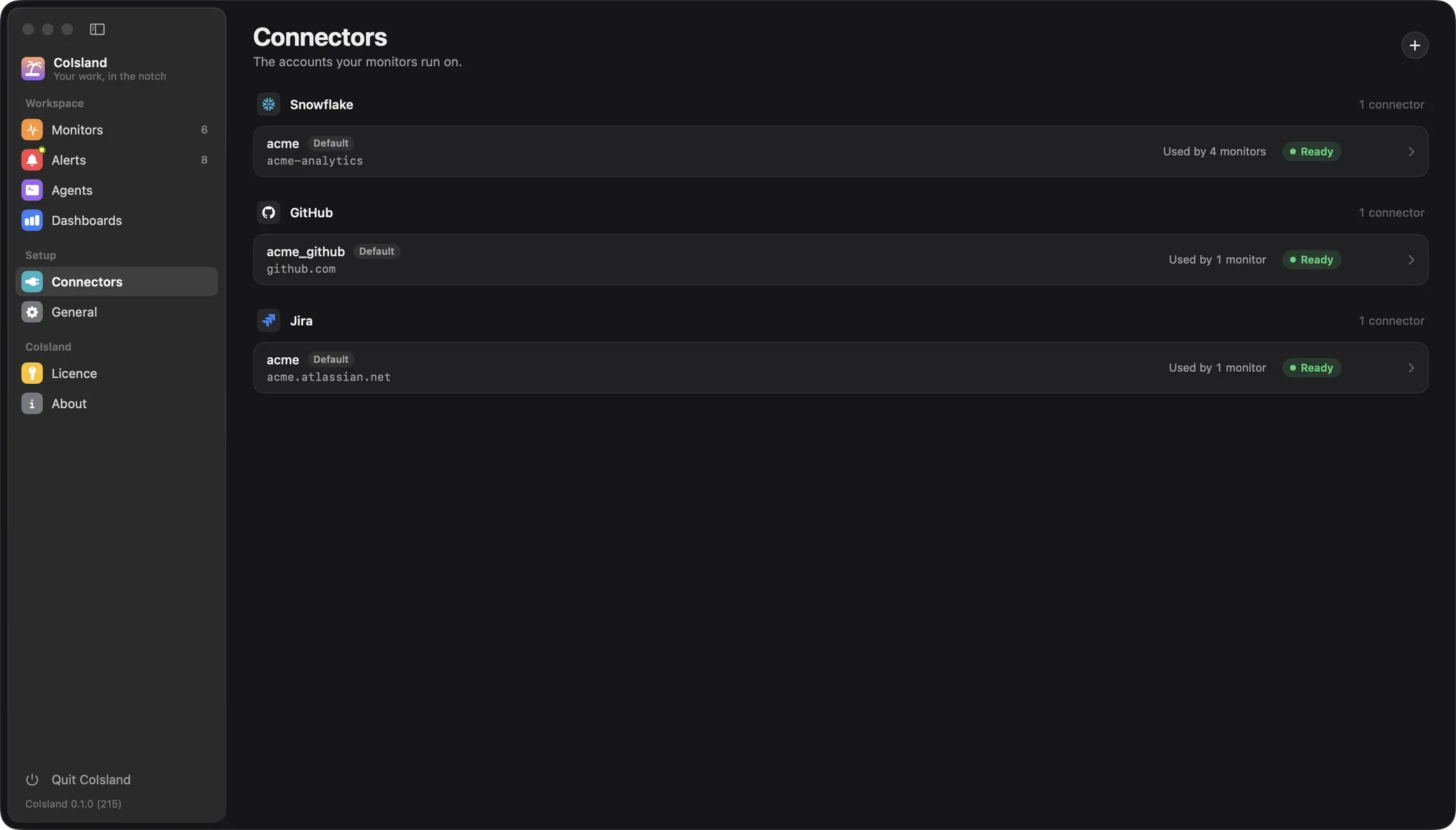
- Open Settings › Connectors and click + (Add Connector).
- On Add a connector, choose GitHub.
- Fill in the three fields, then click Test connector.
- Click Add Connector.
| Field | What to enter |
|---|---|
| Host | Leave github.com, or enter your GitHub Enterprise Server host, or SUBDOMAIN.ghe.com |
| Connector name | What monitors call it: letters, digits, _ and -, starting with a letter. CoIsland suggests github, or ghe_acme for github.acme.com, until you type your own |
| Personal access token | The token you copied, with no spaces or line breaks |
Test connector signs in and asks GitHub who the token belongs to, with GET /user, which needs no permission. It saves nothing. On success it shows Connected with your login, the host and, when GitHub reports one, the token’s expiry date; for a classic token, its scopes.
Add Connector keeps the host and its API address in ~/Library/Application Support/CoIsland/connectors.json, and the token in your login Keychain, never in a file. The first GitHub connector becomes the default: a monitor that names no connector runs on it.

Watch GitHub: the five monitor kinds
Open Settings › Monitors, click + (New Monitor) and choose GitHub. Pick a kind, or start from one of the examples listed under the kinds. Every editor has a Test button that runs the query once, saves nothing and says how many items match now.
A monitor’s first check records what already matches and raises nothing; from then on, each new item is an alert. A monitor set to alert on a count, such as more than 20 open bugs, is different: it alerts on its first check if the count is already past the line.

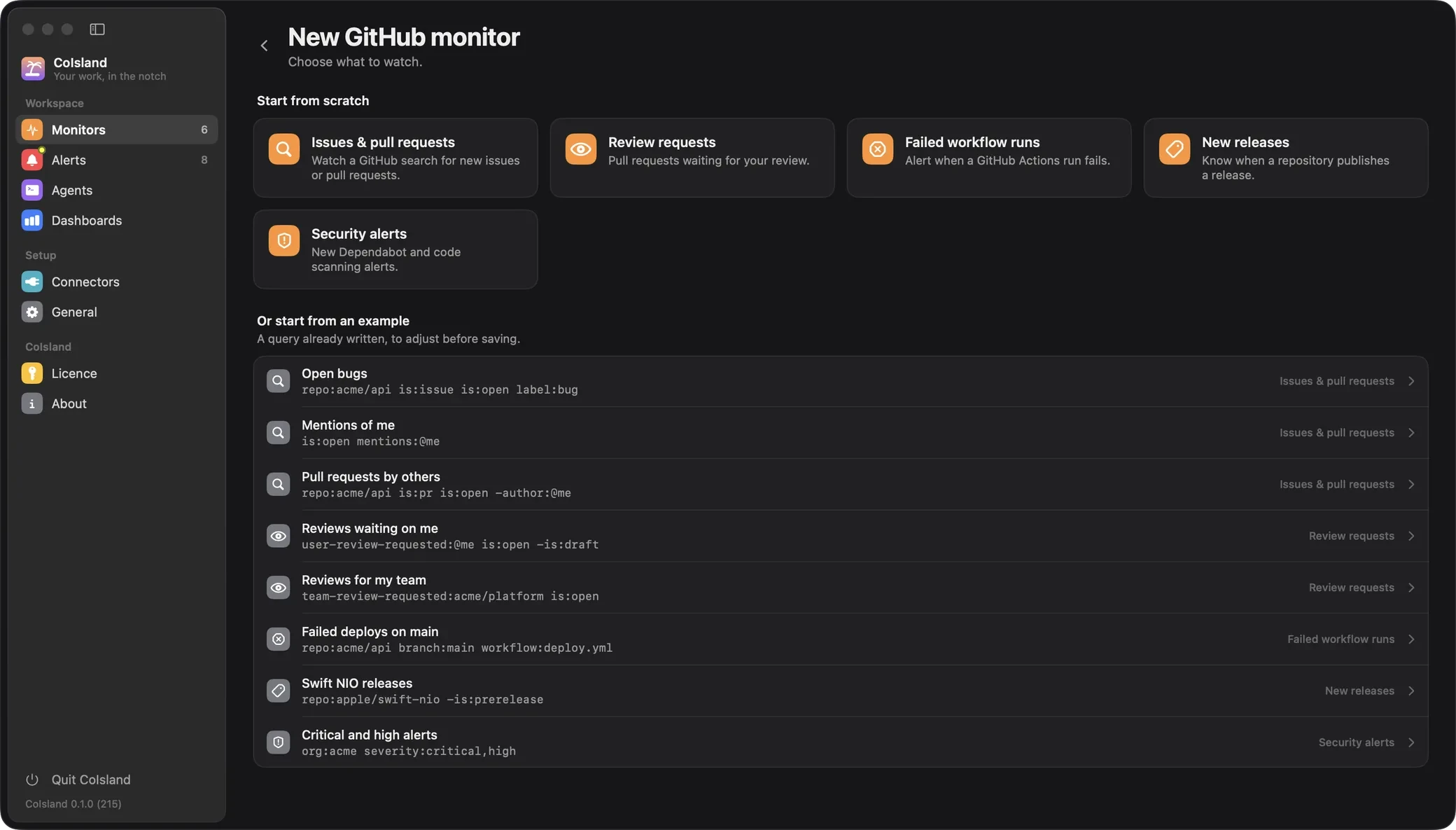
| Kind | What you write | What alerts |
|---|---|---|
| Issues & pull requests | A GitHub search | An issue or pull request that starts matching |
| Review requests | A GitHub search; is:pr is added for you |
A pull request waiting for your review |
| Failed workflow runs | repo: and optional filters |
A failed run of the last 7 days |
| New releases | repo:, optionally without pre-releases |
A release published in the last 30 days |
| Security alerts | repo: or org:, tool:, severity: |
A new open security alert |
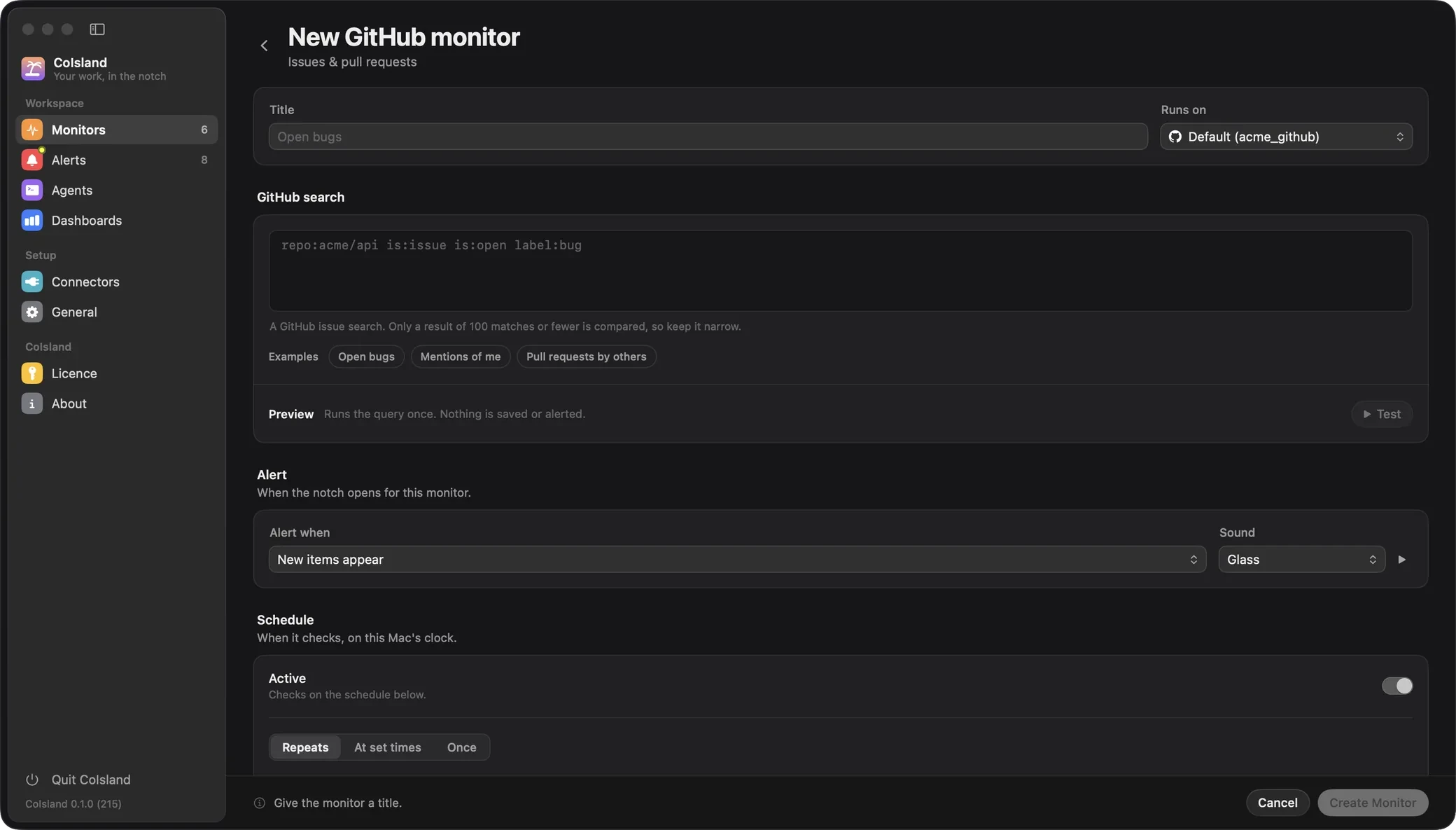
Issues and pull requests: GitHub’s search syntax
The query is the search you would type on github.com, with the qualifiers from GitHub’s search documentation:
repo:acme/api is:issue is:open label:bug
org:acme is:issue is:open label:incident,outage
repo:acme/api is:pr is:open -author:@me
is:open mentions:@me
label:incident,outage matches either label, and -author:@me leaves out your own pull requests. CoIsland turns on GitHub’s advanced search, where a space between two repo: qualifiers means AND. To watch two repositories, join them with OR:
(repo:acme/api OR repo:acme/web) is:issue is:open label:bugThe 100-match limit. Each check is one request for the 100 newest matches. When more than 100 match, CoIsland compares nothing rather than judge from a partial list, and the monitor warns “More than the 100 rows fetched match, so nothing is compared. Narrow the query.” Add a repo:, a label: or a date such as created:>=2026-09-01 until Test shows fewer than 100 matches. A count rule still works on a wide search: over 100 is enough to know that count > 20 holds.
Review requests
user-review-requested:@me is:open draft:false
team-review-requested:acme/platform is:open
The first matches pull requests where you were asked by name, the second those asked of a team. GitHub drops a reviewer from these results once they review, so when someone asks you to review again, the pull request comes back and alerts again.
Failed workflow runs
The editor has fields for the repositories, the status (Failure unless you pick another), the branch, the event, the workflow file and the actor, and writes the query for you:
repo:acme/api branch:main workflow:deploy.yml
repo:acme/api repo:acme/web event:push status:timed_out
Here repo: can repeat: these are CoIsland’s own filters, and each repository is asked on its own. CoIsland reads the runs created in the last 7 days, up to 100 per repository. A re-run that fails again is a new attempt, so it alerts again. The GitHub Actions failure notifications guide goes further.
New releases
repo:apple/swift-nio -is:prerelease
repo:acme/api repo:acme/cli
Drafts never count, so publishing a draft is what alerts. -is:prerelease, the Include pre-releases switch turned off, leaves betas and release candidates out.
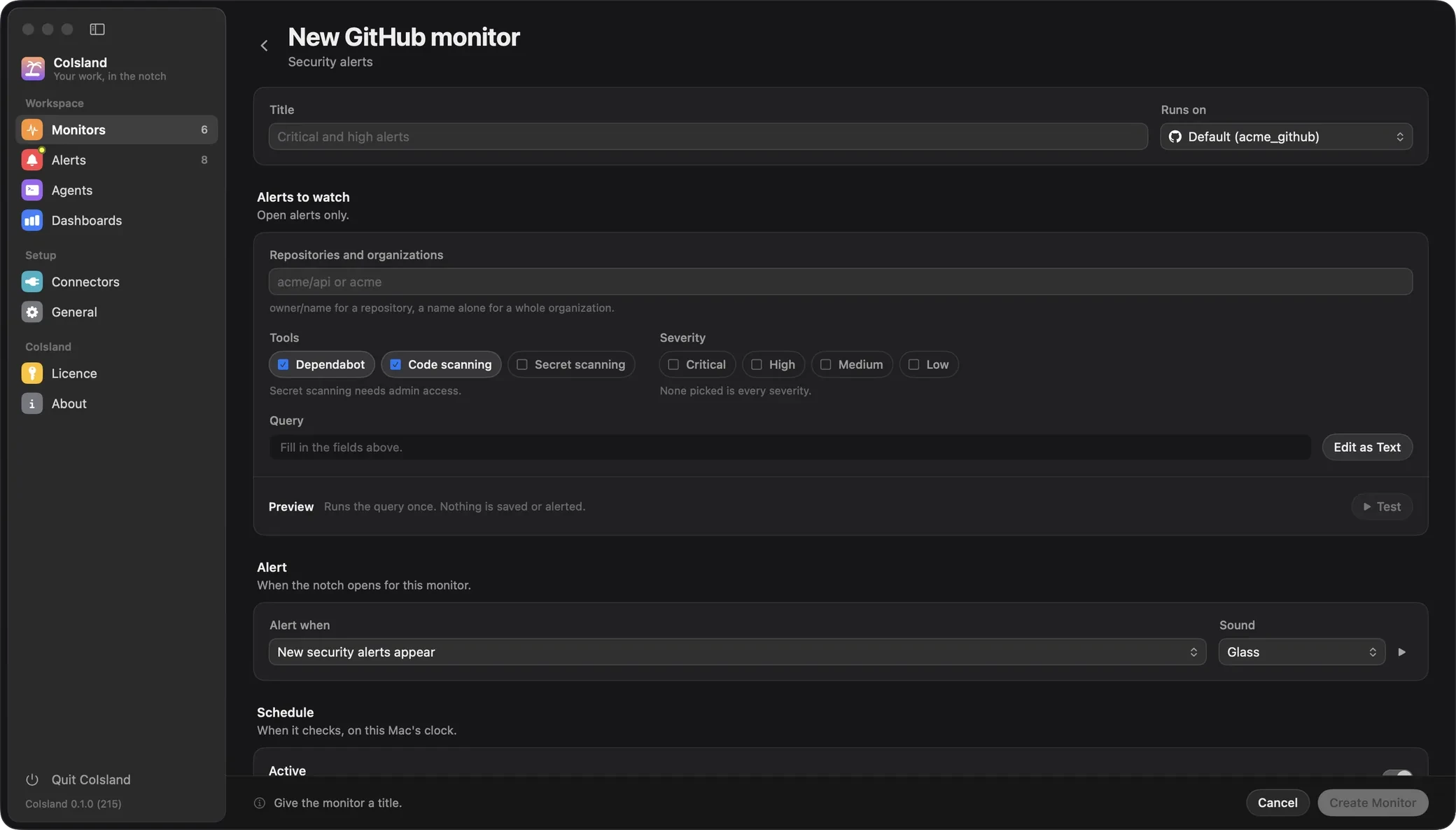
Security alerts
org:acme severity:critical,high
repo:acme/api tool:dependabot,code-scanning,secret-scanning
Open alerts only. Without tool:, CoIsland asks Dependabot and code scanning; secret scanning only when you name it, since it needs an administrator. Secret scanning alerts have no severity, and CoIsland never asks GitHub for the secret itself. It follows every page, up to 1,000 alerts per tool and target.

A GitHub monitor is a watch file
Every monitor, GitHub’s included, is a .sql file in ~/.coisland/watches. The -- kind: line names the monitor kind, and the query is the text under the header. This is open-bugs-in-the-api.sql:
-- name: Open bugs in the API
-- kind: github.issues
-- connector: acme_github
-- every: 5m
-- alert: new-rows
-- title: {REPO}#{NUMBER} {TITLE}
-- sound: Glass

repo:acme/api is:issue is:open label:bug
-- kind: |
Monitor kind |
|---|---|
github.issues |
Issues & pull requests |
github.review-requests |
Review requests |
github.workflow-runs |
Failed workflow runs |
github.releases |
New releases |
github.security-alerts |
Security alerts |
Keep the -- kind: line: a file without one is read as Snowflake SQL. Without -- connector:, the monitor runs on the default GitHub connector. -- alert: count > 0 in place of new-rows fires once when the count becomes true. Changing the query or the connector starts a fresh baseline; renaming the monitor or changing its sound does not. Watch files lists every header key.
GitHub Enterprise Server and GHE.com
CoIsland works out the API address from the host you type:
github.com, or nothing, callshttps://api.github.com.github.acme.comcallshttps://github.acme.com/api/v3, andgithub.acme.com:8443callshttps://github.acme.com:8443/api/v3.octocorp.ghe.comcallshttps://api.octocorp.ghe.com.
The same rules hold for every host:
- A pasted
https://, trailing slash or/api/v3is accepted.http://is refused with “Use https: the token is only ever sent over an encrypted connection.” - CoIsland follows no redirect, so the token never leaves the API host, and the next page of a list must be on that host too.
- On GitHub Enterprise Server, create the token on your server, under the same Developer settings. If your server does not offer fine-grained tokens, use a classic one.
- On GHE.com, your enterprise’s API lives at
api.SUBDOMAIN.ghe.com, which CoIsland derives fromSUBDOMAIN.ghe.com. - Connectors sit side by side: one for github.com, one per server or organization. Each monitor picks one under Runs on, or with its
-- connector:line.
Troubleshooting GitHub connector errors
A failed check shows its error on the monitor, in CoIsland’s words:
- “The token was refused. Check it has not expired or been revoked.” GitHub answered 401. An expired token cannot be restored: create a new one, add it as a new connector, and choose it under Runs on or in each monitor’s
-- connector:line. - “acme/api: Not allowed: Resource not accessible by personal access token; it needs actions=read. The token may lack a permission.” A 403. The part after “it needs” is GitHub’s own list of the permissions that request takes. Give the token that permission, read-only.
- “Not allowed: the organization uses single sign-on; authorize the token for it on GitHub. The token may lack a permission.” A classic token not yet authorized for the organization’s SAML single sign-on.
- “acme/api: Not found, or not visible to this token.” GitHub answers 404 rather than 403 for a private repository the token cannot see. Check the name, the token’s resource owner, its repository list, and whether the organization has approved it.
- “acme/api has moved (renamed or transferred). Use its new owner/name.” Update the
repo:value. - “GitHub refused the query: …” GitHub rejected the search (422) and CoIsland quotes its reason, for example a
repo:the token cannot read. - “Rate limited; retry after 60. The next check will try again.” GitHub allows 30 searches a minute and, on github.com, 5,000 REST requests an hour for a personal token. CoIsland waits a minute, then doubles the wait each time it is refused again, up to 15 minutes.
- “Unknown filter “label:”. Use repo:, branch:, event:, workflow:, actor: or status:.“ Runs, releases and security alerts take CoIsland’s own filters, not GitHub search qualifiers.
Frequently asked questions
What permissions does a GitHub token need for CoIsland?
Read-only Issues and Pull requests for searches and review requests, Actions for workflow runs, Contents for releases, and the matching alerts permission for security alerts.
Can I use a classic personal access token?
Yes, and Test connector shows its scopes. A fine-grained token is safer: it can be read-only and limited to a few repositories.
Does CoIsland work with GitHub Enterprise Server?
Yes: enter your server’s host and CoIsland calls https://HOST/api/v3. GHE.com works too.
Can CoIsland change anything in my GitHub repositories?
No. Every request the connector sends is a read. An agent you hand an alert to works through its own CLI, under its own permission mode, and asks you before anything destructive; see Agents.
Where does CoIsland keep my GitHub token?
In your login Keychain. connectors.json holds the connector’s name, host and API address, never the token.
Next steps
- Getting started walks through your first alert, and Agents hands one to Claude Code, Codex or Cortex Code.
- The GitHub connector page sums up what CoIsland watches in GitHub; CoIsland versus GitHub notifications compares it with what GitHub already sends you.
Stuck? Open an issue on GitHub, or write to hello@coisland.app.